
Open a map, zoom in and out, change your route twice, look up a café-and another slice of your data allowance is gone. Thankfully, Google Maps has a straightforward offline feature that can make lengthy drives far less data-intensive. It requires no technical know-how and works equally well in towns, the countryside and those strange stretches in between where reception fades away.
We set off early, with an empty motorway and a playlist trying valiantly to wake us up. The blue navigation line appeared dependable at first, but the signal bars fell to one and then vanished entirely. The map remained visible, although its detail softened, as though the road ahead sat behind misted-up glass. We stopped in a lay-by, holding our phones aloft like dowsing rods, and laughed at the ridiculousness of needing a signal in the middle of nowhere.
Following a coffee and a little proper experimentation, the answer turned out to be almost painfully easy. Download the route and the wider surrounding area over Wi-Fi, use the map offline, and let it direct you without consuming mobile data. It is the useful trick nobody mentions until you have already become lost. Its most useful feature, though, is what it does when you go off course.
Why offline Google Maps is a road-trip cheat code
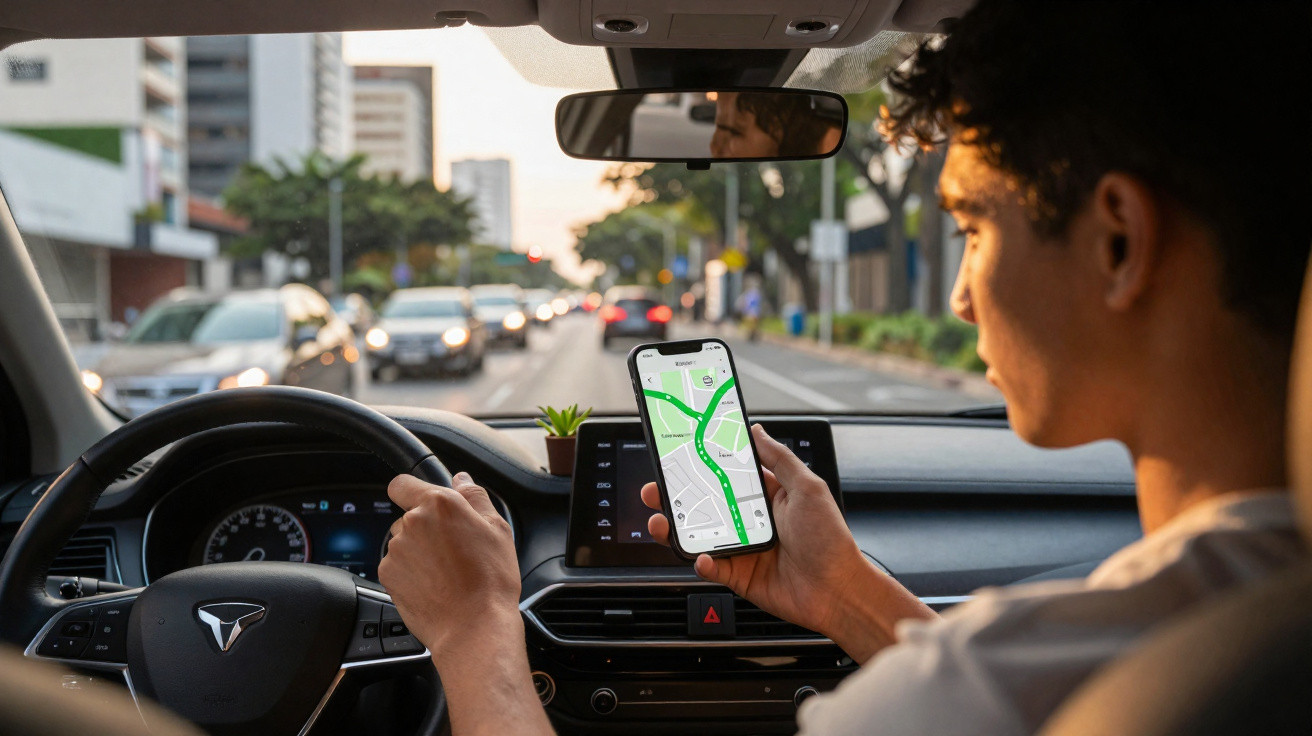
Offline maps offer more than a fallback. They help keep navigation dependable when 4G weakens, your allowance is small or you are travelling abroad on roaming. Download an area while connected to Wi-Fi and you can drive using complete turn-by-turn directions stored on your phone. Voice prompts continue to work, searches find most locations, and your data bill gets a little relief.
On one wet Tuesday driving through the Peaks, we used maps in the usual way: live navigation, repeated rerouting, a handful of café searches and a quick petrol-station check. After two hours, 120MB had disappeared. We repeated the route the following day with an offline area downloaded for a county-sized section. Data used? 8MB, covering the occasional review image and a weather check. It felt like replacing a leaking bucket with a thermos.
The reason is simple. When you download an area, Google Maps saves vector map data, road layouts, speed limits and place names directly on your device. Navigation no longer has to repeatedly download map tiles. Rather than continually “painting” the map via the network, it reads the information from your phone storage. You will lose traffic overlays while offline, but the route remains highly dependable. Once reception returns, Maps discreetly updates anything that needs refreshing.
The exact offline Google Maps trick, step by step
Set this up before leaving. While on Wi-Fi, open Google Maps, tap your profile picture and select Offline maps. Choose Select your own map. Pinch and zoom to include the entire journey plus a generous surrounding buffer-cover the whole region, rather than only the A-road you intend to follow. Tap Download. In Settings, switch on automatic updates for offline maps over Wi-Fi, keeping them current every 30 days. While driving, you can leave mobile data enabled for calls if you wish, but Maps will prioritise the offline download.
One small extra step can reduce data use still further. On Android, limit Google Maps background data and activate the phone’s Data Saver. On iPhone, go to Settings > Mobile Data and turn off Mobile Data for Maps if you want to stay entirely offline, or switch on Low Data Mode. Preview the route over Wi-Fi and zoom along its waypoints to cache labels and images. Everyone knows the feeling of losing reception just as an awkward junction appears; this prevents that panic before it can begin.
There are a few real-world limitations worth understanding. Offline maps cannot display live traffic, road closures or speed-camera updates. Without reception, walking, cycling and public transport directions may not work consistently. Rerouting is available within the downloaded area, but has restrictions once you travel beyond its edges.
“Offline Maps won’t make you a mind reader, but it will make you far less dependent on a moody network,” said a friend who drives delivery routes across rural Wales.
- Download a larger area than seems necessary, including possible diversions and scenic routes.
- Refresh offline maps each month so new roads and one-way systems do not surprise you.
- Leave voice guidance enabled; it functions offline and means you do not have to keep looking at the display.
- Do not use Satellite view while driving: it looks attractive but consumes plenty of data.
- If you need live traffic in a city centre, turn data back on as you approach it.
Small habits that make the trick feel effortless
Create a simple routine before each journey. The evening before, connect to the quickest Wi-Fi available and download offline maps for every part of the drive, including the return trip. Save important stops-petrol stations, cafés, car parks and your accommodation-as Favourites, allowing you to navigate to them offline with a single tap. Give offline maps trip-specific names-“Cornwall July” is much more useful than “Area 2” when you are bleary-eyed at 6am.
A frequent error is selecting a rectangle that follows a motorway too closely, then overlooking the country lanes that lead to and from it. Another is disabling automatic updates, only to discover that a saved map has expired after 30 days. When storage is limited, remove last month’s city map before downloading this weekend’s coastal area. In truth, nobody keeps on top of that daily. A quick five-minute tidy before travelling makes the rest feel effortless.
There is real reassurance in knowing your map will not disappear as soon as a hill cuts off your signal. Should you need data during the journey-for traffic information, for example-switch it on briefly, refresh the map, then return to offline directions. Your phone battery will last longer as well, because it is not continually searching for a network. You can focus on the view rather than a loading icon. That is, after all, what a road trip is for.
What changes when you drive offline
Driving offline changes your mindset as much as it changes your data consumption. You prepare a little more carefully, save places you might otherwise overlook and stop compulsively checking each upcoming turn. The navigation voice continues to guide you. Miss a slip road and Maps will recalculate inside your saved area. In coverage blackspots, the map remains stable, like a speaking paper road atlas.
There is a trade-off in losing live traffic, and it is worth acknowledging. Your ETA may become slightly less accurate, while dynamic routing cannot take you around congestion until coverage returns. In that situation, make a quick choice: enable data for ten seconds in an area with reception, refresh, then return to offline mode. Treat traffic as a garnish rather than the meal. The essential route is already stored on your phone, and it will still guide you there reliably.
One final suggestion: if travelling abroad, download languages for offline text-to-speech and use the standard map display. Satellite, Street View and Live View look impressive, but they consume data like ordering every dessert on the menu. Use the essentials rather than the extras. Your journey will feel more relaxed, your battery indicator will be healthier, and your data allowance will remain intact when you arrive at the car park.
| Key point | Detail | Benefit for the reader |
|---|---|---|
| Download broad offline areas | Include your complete route plus buffers for detours | Avoids dropouts and stressful rerouting |
| Use system data-saving tools | Android Data Saver, iOS Low Data Mode, and restricted background data | Keeps mobile data use very low on lengthy drives |
| Update and label maps | Auto-update over Wi-Fi every 30 days and name maps by trip | Keeps offline navigation dependable and straightforward |















Comments
No comments yet. Be the first to comment!
Leave a Comment