
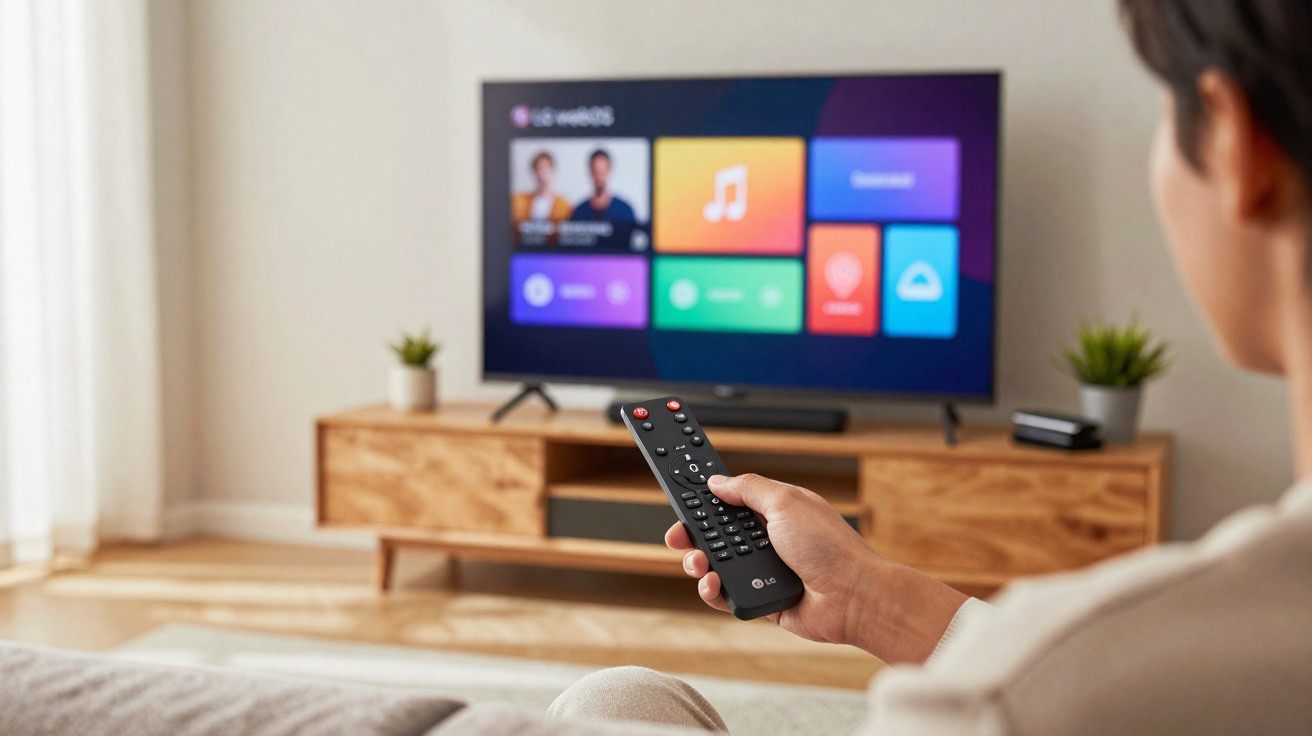
Holding down the 0 button on the remote control can bring up a lesser-known menu on certain LG Smart TVs running webOS. Called Quick Access, this feature lets you assign apps and a few functions to the number keys, turning the remote’s digits into shortcuts for services you use often.
What happens when you hold down the number 0?
On compatible LG models, pressing and holding the 0 key opens the editing screen for Quick Access. In this panel, the available numbers can be linked to an app or a function, allowing you to tailor the remote to whoever regularly uses the television.
Once you’ve set it up, you no longer need to go through the home screen each time you want to open an assigned app. Simply press and hold the chosen number and the TV will launch that shortcut straight away.
- The number 0 opens the shortcuts settings screen;
- The other number keys can be assigned apps or functions;
- A shortcut launches by pressing and holding its corresponding number;
- You can return to the menu later to change the assignments;
- Availability depends on the TV model, the remote, and the system version.
How do you set an app to a number key?
With the TV switched on, press and hold 0 until the Quick Access panel appears. Pick one of the available numbers and choose the app or feature you want to attach to it. LG’s own documentation outlines this sequence for remotes and televisions that support the feature.
Why turn number keys into shortcuts?
The main benefit is cutting down the steps needed to reach your most-used apps. Instead of opening the home screen, scrolling through the list, and selecting a service, you can assign it-say-to number 1 or 2, then access it later by holding down just that key.
This is particularly handy on televisions with lots of apps installed, because the numbers effectively become custom buttons. It doesn’t change the apps themselves or technically speed up the TV’s processor; it simply shortens the route you take to open certain content.
- Choose numbers that are easy to remember for the services you use most;
- Keep the first few keys for apps you open every day;
- Avoid assigning functions you hardly ever use;
- Go back to the 0 menu whenever you want to rearrange your shortcuts;
- Test each key after setting it up so you can remember what it does.
Does the number 0 trick work on every television?
No. The shortcut described is tied to LG Smart TVs with webOS and compatible remotes-particularly versions of the Magic Remote that include a numeric keypad. On TVs from other brands, models without this feature, or newer remotes without a physical 0 key, holding the button may not do anything similar.
How to check whether your TV has Quick Access
If your remote includes number keys, the simplest approach is to check the manual for your specific model and look for Quick Access (sometimes also shown as Acesso Rápido). On compatible devices, holding down 0 should display the edit screen, while holding down a number you’ve already set should open the associated app.
So this isn’t a universal “secret code” for remotes, but rather a customisation option available on certain LG televisions. When it’s supported, it turns number keys that aren’t used much during streaming into direct shortcuts, reducing several button presses to a single long press.



Comments
No comments yet. Be the first to comment!
Leave a Comment