
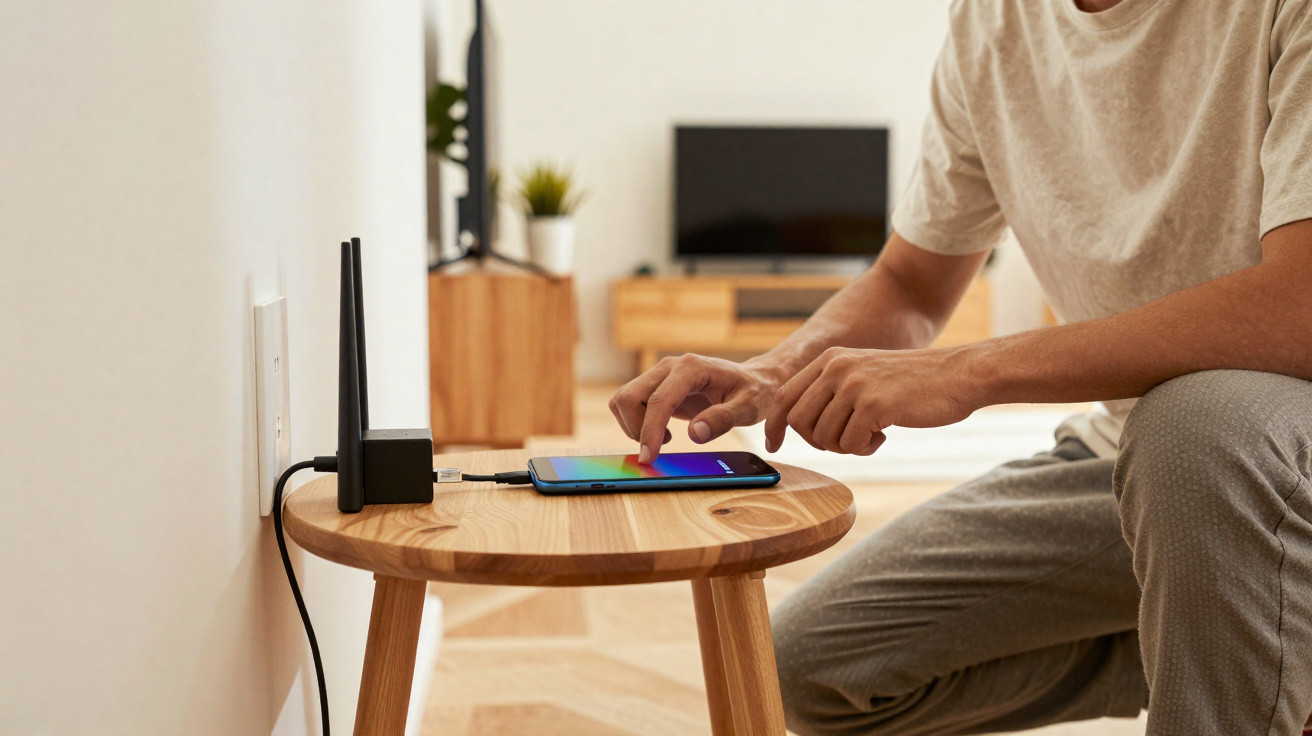
Plenty of households know the same irritating Wi‑Fi dead spot: the connection is brilliant in the living room, but three rooms away it crawls. Before spending money on an extra repeater, it’s worth rummaging in the drawer of old smartphones. A retired Android handset can back up your router surprisingly well - provided you set it up correctly.
Why Wi‑Fi often struggles in flats and houses
Today’s routers and ISP hubs have far more capable radio chips than they did a few years ago. Even so, connections can drop out or slow dramatically as soon as you move further away from the router. In most cases, the causes are the usual suspects.
- Distance: The further you are from the router, the weaker the signal becomes.
- Walls and ceilings: Reinforced concrete, dense brickwork or underfloor heating can absorb radio waves.
- Interference: Neighbours’ Wi‑Fi, baby monitors, microwaves or Bluetooth speakers can get in the way.
- Poor router placement: The router is tucked in a corner or hidden away in a cupboard.
"Where the Wi‑Fi only just makes it through, an extra wireless point helps - and that’s exactly where an old Android smartphone can step in."
How a standard Android smartphone becomes a repeater
A conventional Wi‑Fi repeater receives the router’s signal and retransmits it to extend coverage. An Android phone can do something broadly comparable, just under different labels: “Hotspot”, “Mobile hotspot” or “Tethering”.
Most people immediately associate this with sharing a mobile data connection. Far fewer use it to pass an existing Wi‑Fi network on to other devices. With a reasonably modern Android device, that’s something you can set up.
What your old device needs
- An Android version that supports Mobile hotspot or Tethering (in practice, almost all devices from recent years).
- A setting that allows the hotspot to stay on continuously (menu layouts vary by manufacturer).
- Enough battery capacity - or better still, a spot close to a mains socket.
- A working Wi‑Fi module so the phone can join your home network.
If any of these are missing, it’s usually not worth the effort. For most Android phones from roughly 2017 onwards, however, the chances are good.
Step by step: set up an old Android phone as a Wi‑Fi booster
Menu names and options differ slightly between brands, but the overall process is much the same. One typical route looks like this:
- Switch on the old phone and reset it if it still contains lots of data.
- Connect it to the home Wi‑Fi you want to extend.
- Open Settings, then go to Network & Internet or Connections.
- Tap Hotspot & tethering or Mobile hotspot.
- Turn on the Wi‑Fi hotspot and set a name (SSID) and password.
- Optional: adjust the channel, choose the band (2.4 or 5 GHz), and configure any automatic switch‑off.
Important: not every Android version can relay an existing Wi‑Fi connection. Some phones only share mobile data. If your device offers no option to “share” Wi‑Fi, you can’t use this repeater trick directly. In some cases, third‑party apps can help, but they often require root access or fiddly configuration.
"The ideal candidate is an Android smartphone that’s allowed to run as a mobile hotspot while it’s also connected to the home Wi‑Fi."
Finding the perfect position in your home
Where you place the old smartphone matters almost as much as the setup itself. It needs a strong link back to the router while also covering the wireless “shadow” area.
- Begin within line of sight of the router, then move step by step towards the problem area.
- A good spot is where the phone still shows a stable signal but your laptop is already struggling.
- Don’t hide it in cupboards, behind metal‑filled shelving, or in corners right on the floor.
- Higher positions - for example on a shelf or the top of a cabinet - often improve range noticeably.
After that, connect your laptop, tablet or TV to the old phone’s hotspot instead of connecting directly to the router. If a speed test improves, you’ve found your mini‑repeater setup.
Power, security and day‑to‑day use: what to watch out for
A smartphone isn’t a purpose‑built repeater. There are a few practical points to keep in mind before relying on it long‑term.
Power supply and heat
A phone broadcasting a hotspot 24/7 will draw a fair amount of power. Ideally, keep it permanently connected to a charger. Use a charger with a more moderate output, and leave the handset in the open - not under blankets and not wedged behind a television.
"Heat is the biggest enemy of your improvised repeater - the cooler the smartphone stays, the more stable the Wi‑Fi will be."
Many Android phones throttle performance when they get too hot, or simply disable the hotspot. A cool location and a sufficiently capable (but not excessively powerful) charger reduce the risk of these drop‑outs.
Don’t neglect security settings
- Choose a long, unique hotspot password.
- Use WPA3 if available, or at least WPA2 encryption.
- Regularly check the list of connected devices in the hotspot menu.
- Turn off any WPS‑style quick connection features if they’re offered.
Also remember to update the old phone to the latest patch level available. Even when major Android upgrades are no longer provided, security updates are often still offered.
When a traditional repeater is still worth it
The phone approach is clever, costs nothing extra, and gives an old device a new purpose. In some scenarios, though, it reaches its limits - for example:
- Large homes with multiple floors or a very high room count.
- Lots of simultaneous connections, such as a smart TV, consoles, several laptops and multiple phones.
- Wi‑Fi use cases that demand very low latency, such as cloud gaming.
A dedicated repeater or a mesh system is typically more stable, designed for continuous operation, and (depending on the model) can broadcast on multiple bands at the same time. An old Android phone is better viewed as a low‑cost trial: if it clearly proves that a second wireless point fixes your issue, upgrading later to a professional solution becomes an easier decision.
Practical tips for long‑term use
If you want to keep a former daily‑driver smartphone working permanently as part of your Wi‑Fi setup, a few extra tweaks can help:
- Uninstall or disable any apps you don’t need.
- Check power‑saving modes and configure them so the hotspot doesn’t turn itself off after a few minutes.
- Reduce screen brightness to the minimum, or disable the always‑on display.
- Switch off notifications so the device isn’t constantly waking up.
Many people also add a simple plug‑in timer: the charger switches off overnight and runs during the day. That reduces strain on the battery and trims electricity use, without you having to remember to turn anything off each evening.
What terms like repeater, mesh and access point actually mean
If you’re new to repeaters and similar kit, it’s easy to get lost. Three terms show up again and again:
| Term | Quick explanation |
|---|---|
| Repeater | Receives a Wi‑Fi signal and retransmits it to increase range. |
| Access point | Connects via an Ethernet cable and creates a separate Wi‑Fi network at a second location. |
| Mesh system | Multiple stations that work together as one large, seamless Wi‑Fi network. |
An old Android phone sits somewhere between a repeater and an access point: it connects to the router over Wi‑Fi, while at the same time creating a new, separate wireless network. Technically it isn’t perfect, but in many flats and houses it’s more than adequate.
If you later move to a mesh system, the phone trick will already have shown you where the weak spots are in your home. That makes it much easier to place mesh stations intelligently - and avoids unnecessary purchases based on guesswork.





Comments
No comments yet. Be the first to comment!
Leave a Comment