
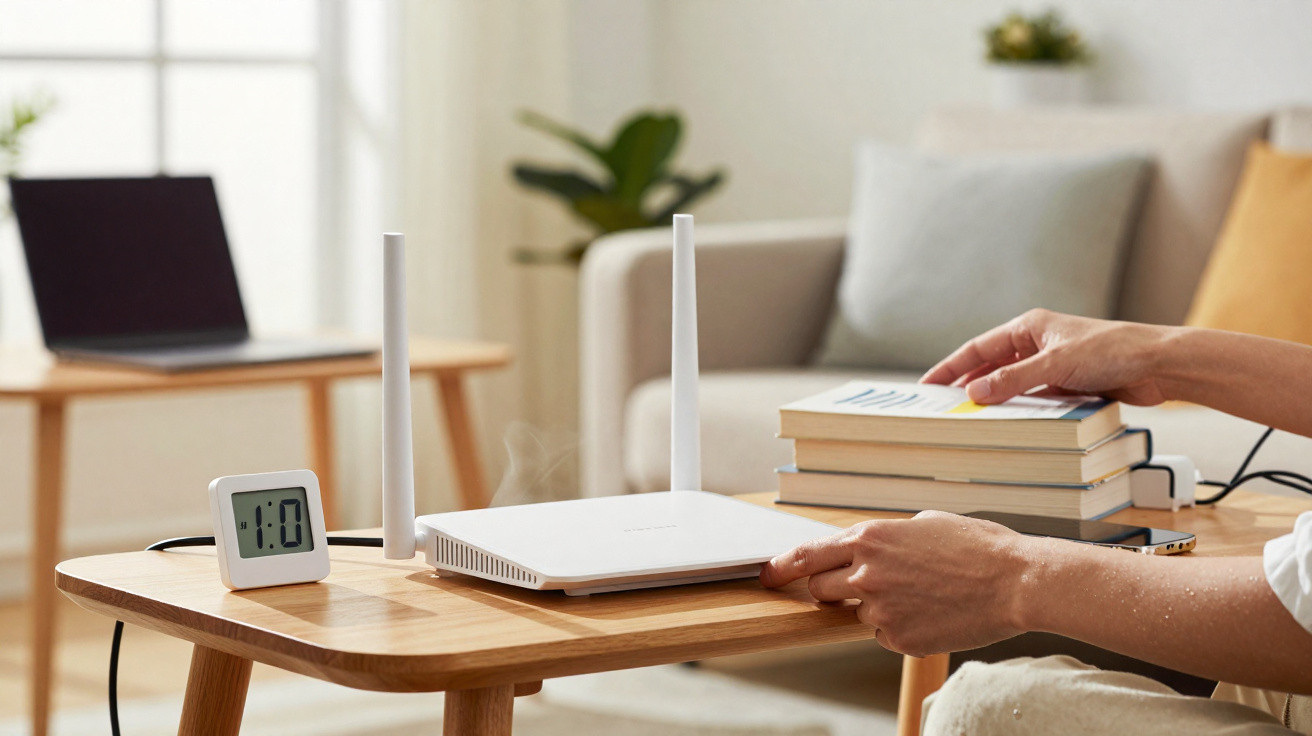
A Wi‑Fi router is one of the devices most likely to stay switched on at home or in an office. Because it runs continuously, it is normal for the unit to warm up over the course of the day, which can raise questions about safety, performance and longevity. Knowing why it heats up, how placement affects ventilation, and when warmth turns into a real issue helps you prevent connection faults and speed drops-often without needing to replace the router straight away.
Why does the Wi‑Fi router get hot during use?
A router heats up because its internal components are working all the time to send and receive data across the network. The processor, internal power circuitry and radio modules convert electrical energy into a wireless signal, and heat is a direct by‑product of that process-especially when there is heavy data traffic and lots of connected devices.
The physical design also plays a part: compact devices have less room to shed heat and rely more heavily on ventilation openings. When those air inlets are blocked by dust, walls or nearby objects, heat becomes trapped inside the casing, pushing up the internal temperature and speeding up wear on components.
How does Wi‑Fi router placement affect overheating?
How you position the router has a direct impact on airflow and operating temperature. Putting the unit inside closed cupboards, on shelves very close to the ceiling, or pressed against surfaces that cover the vents makes heat build up more easily and can harm both connection stability and signal range.
To keep the device cooler and working efficiently, choose an airy spot away from heat sources and avoid stacking other electronics underneath or on top of it. A few simple day‑to‑day habits can make a big difference:
- Leave a clear gap of a few centimetres on all sides of the device.
- Avoid enclosed spaces such as closed cupboards, drawers or decorative boxes that stop air circulating.
- Keep the router in the position recommended by the manufacturer, usually a specific vertical or horizontal orientation.
- Move cables and power adapters away if they concentrate heat in the same area.
- Clean dust from the ventilation openings regularly using a dry cloth or a soft brush.
What are the signs that the router is suffering from excessive heat?
Some warmth is normal, but overheating usually shows up in noticeable ways. Sudden speed drops, unstable Wi‑Fi, frequent disconnections and repeatedly having to restart the router can indicate the device is trying to protect itself from high temperatures.
During very hot weather or in poorly ventilated locations, the router’s casing may stay hot to the touch for long periods, sometimes with a warm plastic smell. If that happens alongside a faulty power supply or an overloaded socket, the router may switch itself off or fail to return to normal operation after a power cut, suggesting a higher risk of permanent failure.
Watch the video on Intelbras’s YouTube channel below, which shows how to position a Wi‑Fi router correctly.
When is it time to replace the Wi‑Fi router because of overheating?
Not every heat issue calls for an immediate replacement: in many cases, moving the router, improving ventilation, updating the firmware and turning off rarely used extra features will reduce temperatures. However, if connection drops, freezes and restarts continue for weeks even in a well‑ventilated environment, it can be a sign that internal wear is progressing.
Very old models that no longer receive updates or do not support newer Wi‑Fi standards often run hotter under heavy use and provide fewer thermal protection features. In these situations, switching to a more modern device-with a better heat‑dissipation design and up‑to‑date security features-tends to improve both stability and the service life of a home or office network.



Comments
No comments yet. Be the first to comment!
Leave a Comment