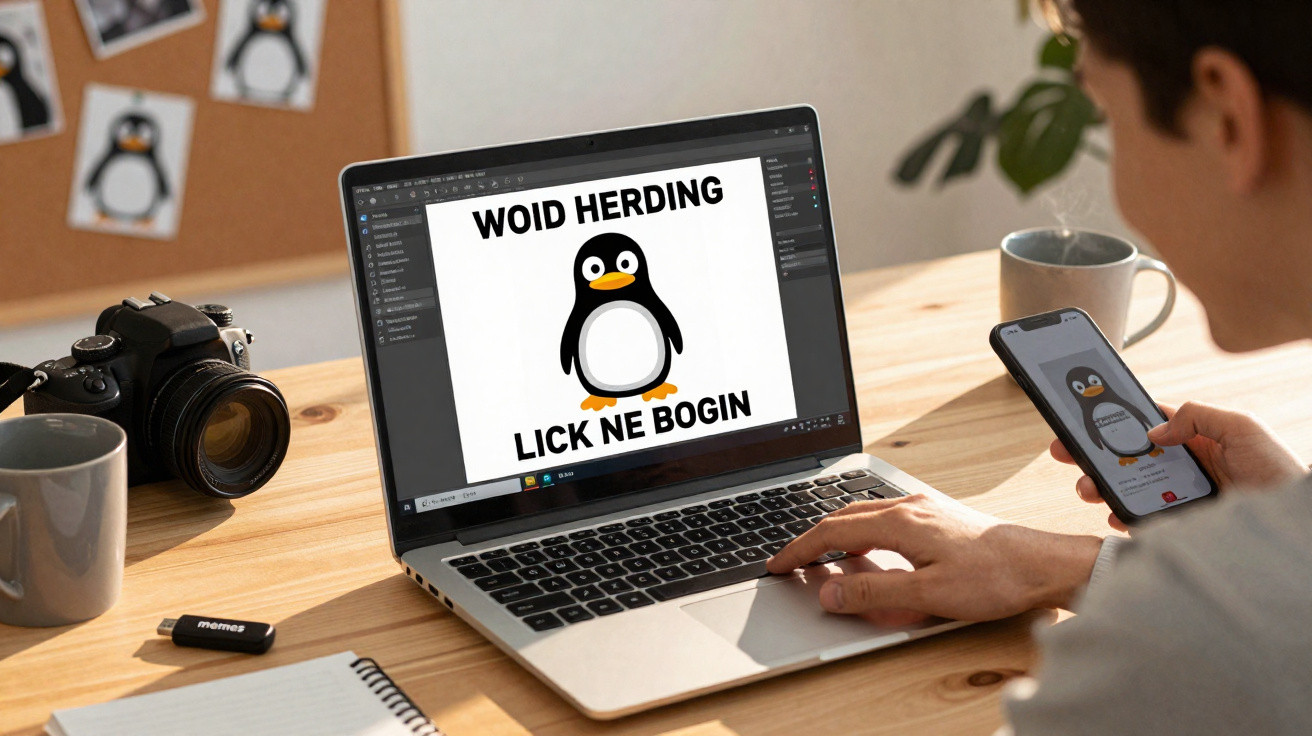
Memerist offers a more pleasant option for Linux users who want to add a funny caption to an image quickly, rather than opening complex image-editing software or relying on dubious online generators. This lightweight application is dedicated solely to making memes: it lets you put text on images and export the finished result.
Create memes easily without learning GIMP
Memes have long been an established part of online communication. A single image and a punchy line can clearly convey an opinion, feeling or comment. People who want to create one themselves often turn to GIMP or similarly powerful tools. They are capable of a great deal, but can be overwhelmingly elaborate for a straightforward meme caption.
“Memerist strips meme creation back to the essentials: choose an image, position text, export it – done.”
This is precisely where Memerist comes in. The small Linux app is free, focused and deliberately limited in scope. It is not intended to replace a professional suite; instead, it is a tool that is ready to use within seconds. It is ideal for anyone who simply wants to make an amusing graphic without clicking through 20 menus.
What Memerist can do – and what it cannot
Memerist includes everything needed for conventional memes while consistently leaving out distractions. Its key features include:
- a built-in mini library of common meme images
- the option to add personal images to that library
- straightforward text layers with basic formatting
- text rotation and a small selection of font effects
- export to .jpg or .png
- contrast filters and a “grubby” effect for deliberately poor-looking images
- zoom controls for precise positioning
- separate layers for images and text
- a live preview while editing
Its clear limitations are exactly what make the application so accessible. Once the app is opened, its approach is clear within a few seconds. There are no complicated layer stacks containing hundreds of settings, no cluttered toolbars and no hidden menus that users must understand beforehand.
“Memerist does not aim to be perfect; it aims to be quick, simple and funny.”
Users should be aware of one limitation: the software does not offer perspective distortion for text, such as angled lettering that follows lines in an image. As a result, text placed on sloping objects can sometimes look slightly out of place. For classic memes with text simply positioned at the top and bottom of an image, this is of virtually no consequence.
Installing Memerist on Linux
Memerist is supplied as a Flatpak package through Flathub. It can therefore run on almost any widely used Linux distribution that supports Flatpak. For many people, installing it through a graphical app store is the simplest route.
Installation via the software store
On distributions such as Fedora, Linux Mint and many current Ubuntu derivatives, Flatpak is often already integrated into the app store. The usual process is as follows:
- Open the software or app store.
- Search for “Memerist”.
- Select the listing and click “Install”.
Once the installation has finished, Memerist will appear in the desktop’s applications menu. If its icon is not shown immediately, signing out and back in once will often resolve this.
Installation from the command line
Those who prefer the terminal, or whose app store does not include Flatpak integration, can use this simple command:
flatpak install flathub io.github.vani_tty1.memerist
The application will then be available from the desktop menu. Restarting the desktop session may be necessary before the entry appears.
Create a finished meme in just a few steps
Using Memerist can be reduced to a small number of clear actions. That simplicity is exactly what makes the tool appealing when inspiration strikes.
1. Choose an image or load your own photo
When launched, Memerist displays a library of existing images. It includes several typical meme templates that can be used immediately. Anyone who would rather use a personal photo can add it to the library in just a few clicks.
It is sensible to use images with a reasonably good resolution, so the exported meme does not look blurred. Smartphone photos are usually sufficient for social networks.
2. Add and style a text layer
The text is what creates the meme itself. A button marked “B” in the sidebar adds a new text layer. Users can then enter their caption and drag it to the desired position with the mouse.
The available adjustments are:
- changing the font size
- rotating text
- selecting basic font effects
- adjusting colours, where appropriate for the template
The live preview immediately shows the effect of every change. Anyone using familiar meme layouts – large white text with a black outline at the top and bottom of an image – can achieve that recognisable appearance very quickly.
3. Export as .png or .jpg
Once the meme looks right, it is time to export it. Click “Export”, set the filename, choose a location and the task is complete.
Memerist saves in .png format by default. Those who would prefer a .jpg file can simply change the filename extension in the save dialogue. Both formats have their place:
| Format | Advantage |
|---|---|
| .png | Higher quality, ideal for text and graphics |
| .jpg | Smaller files, compatible with more platforms |
When memes are sent extensively through messengers or social networks, .jpg is especially worthwhile because files load faster and use less storage space.
Why Memerist is an interesting alternative to AI generators
AI tools can generate “funny” images automatically, but they can often produce questionable content or raise legal concerns. Memerist takes a different approach: users retain full control over both the image and the message at all times.
“Rather than working with entirely artificially generated images, users use their own photos or familiar templates – offering more control and fewer surprises.”
Avoiding AI has another benefit: there is no dependence on the cloud, no servers retraining in the background and no hidden data collection simply because an image is being edited. Everything happens locally on the user’s own computer.
Who is the app particularly suitable for?
Memerist is aimed chiefly at three groups:
- Personal users who want to share something funny with friends quickly.
- Social media managers who need to create image-and-text combinations promptly for smaller channels.
- Linux beginners looking for an easy-to-use graphics tool without immediately moving into complex software.
Because the app is free, it is equally well suited to schools, clubs and small initiatives wishing to use memes as part of projects, campaigns or teaching materials.
Practical tips for better memes with Memerist
Even a simple app can be used to make either poor or brilliant memes. A few rules of thumb can help users get the most from Memerist:
- Keep text as short as possible – long sentences lose their impact on small screens.
- Consider contrast: use light text on a dark background, or the reverse.
- Use a small number of clear fonts rather than mixing them wildly.
- Choose the crop so the punchline is immediately understandable.
- Use filters sparingly – the joke should take centre stage, not the effect.
Users should also consider where they will publish their memes. Some platforms compress images heavily, while others rescale them. This can make small lettering unreadable. A brief test upload helps identify the right size.
Legal and technical pitfalls to keep in mind
Using familiar motifs or copyright-protected images can easily place users in a grey area. Although Memerist includes several templates, the rule for personal content is clear: only use material that is permitted, such as photos taken yourself or royalty-free graphics.
From a technical perspective, Memerist runs reliably and uses modest resources. Flatpak packages generally include their dependencies directly, reducing conflicts with system libraries. Performance can decline with large images on very old computers, but ordinary office or home systems offer more than enough power in practice.
Anyone who uses Linux regularly and often creates memes, small posters or social-media tiles gains a tool in Memerist that feels like a digital notepad: quick to open, quick to close and free from unnecessary baggage. That is exactly why the app fits so well into the everyday routine of many users who do not want large software packages, but simply want a brief laugh – and to let others share it.














Comments
No comments yet. Be the first to comment!
Leave a Comment