
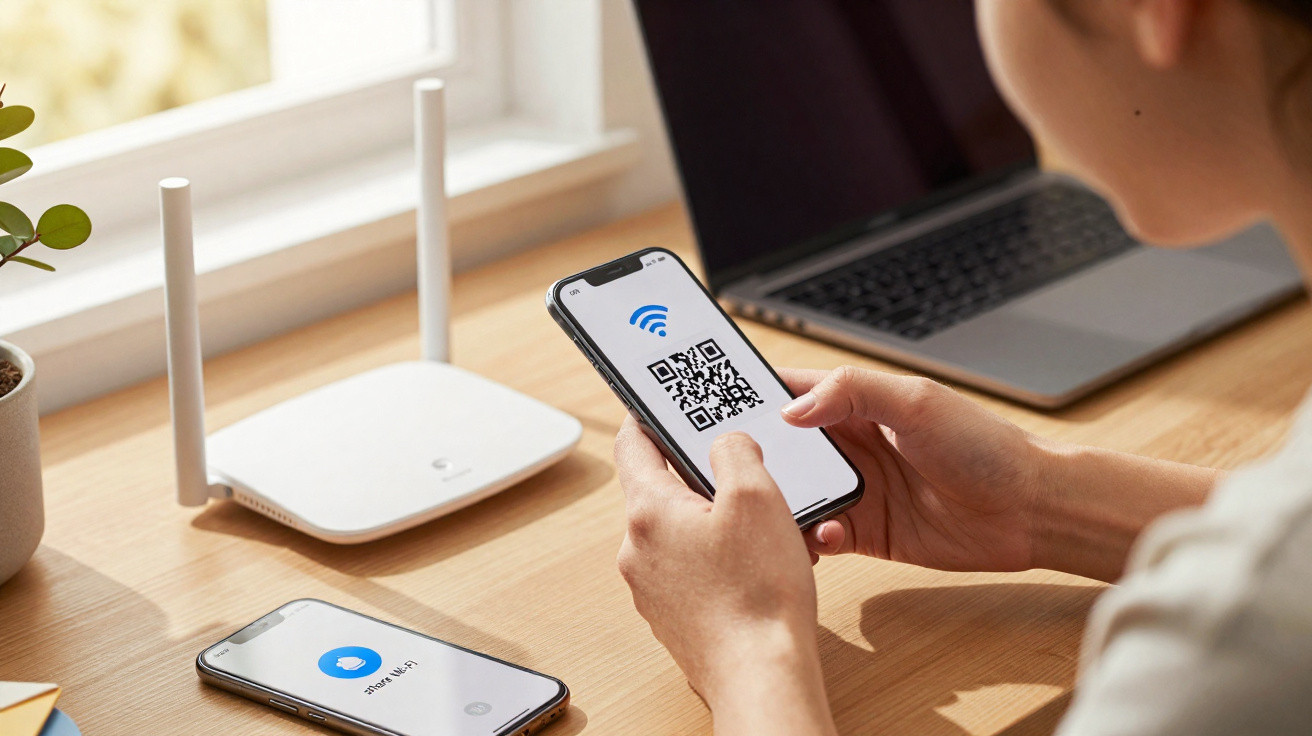
Connecting your phone to Wi‑Fi without typing the password can be straightforward when the network is authorised and the owner chooses to share access. Using a QR Code, device-to-device sharing, or WPS helps you avoid typing mistakes without compromising security or permission.
Is it possible to connect a phone to Wi‑Fi without knowing the password?
Yes - but that does not mean breaking into networks or bypassing protection. The proper approach is to use features that share a connection with the owner’s approval, such as a router’s QR Code, a code created by another phone that is already connected, or direct approval from the network owner.
These options do not crack the password; they simply remove the need to enter it by hand. That is why they tend to work best at home, in offices, at events, and when visiting someone - situations where a person already has legitimate access and can grant the connection in a controlled way.
The most common options are:
- QR Code: lets you join the network by scanning an authorised code.
- Sharing: another connected device can grant access in seconds.
- WPS: connects without typing when both the router and phone support it.
- Guest network: keeps visitors separate from the main home network.
- Authorisation: none of these methods should be used on someone else’s network without permission.
How does connecting via a QR Code work?
Many modern routers include a QR Code on the device label or inside the internet management app. When you scan that code with your phone’s camera, the system picks up the network name, the security type, and the access credentials.
The key point is that the code only works if the details are still current. If the network owner changes the password manually, an old QR Code no longer matches the latest settings and may fail when you try to join.
How can you share Wi‑Fi using another phone?
On Android, someone who is already connected can go into Wi‑Fi settings, tap the active network, and look for a sharing option. The phone typically asks for biometrics, a passcode, or an unlock step before it shows the QR Code.
A quick, authorised connection
Access should come from someone who already has permission. A QR Code avoids typing, but it does not replace the network owner’s authorisation.
On public or unfamiliar networks, stick to connections you trust and avoid handling sensitive information.
On iPhone, sharing can happen between nearby devices as long as Wi‑Fi and Bluetooth are enabled, both phones are unlocked, and the devices recognise each other’s contacts. This allows the person who owns the connection to approve access without revealing the password as plain text.
The most typical process is:
- Ask the network owner for permission before you try to connect.
- On the phone that is already connected, open the Wi‑Fi network settings.
- Use the sharing option, QR Code, or the approval prompt.
- On the new device, scan the code or accept the connection request that appears.
When can the WPS button still help?
WPS can pair some devices with a router without entering the password, using a physical button or an option in the router’s settings panel. However, not all current phones include this feature, and some routers keep it disabled for security reasons.
When it is available, WPS should only be used by the person responsible for the network, because it requires physical access to the router or to the administrator panel. If your phone does not show the option, the safest alternative is usually a QR Code.
Use this approach carefully:
- Make sure the router is yours, or that you have explicit permission.
- Check the manual to confirm the model supports WPS.
- Do not leave WPS enabled permanently unless you need it.
- For frequent visitors, use a guest network instead.
What should you check before connecting without typing a password?
Guides that show how to connect a phone to Wi‑Fi without having the password focus on legitimate sharing methods. The aim is to make authorised access easier - not to join other people’s networks or put privacy and security at risk.
After you connect, avoid using banking apps or accessing sensitive data on unfamiliar networks, keep your phone up to date, and remove saved networks you no longer use. That way, the convenience of quick Wi‑Fi does not become a risk to your accounts or your data.



Comments
No comments yet. Be the first to comment!
Leave a Comment