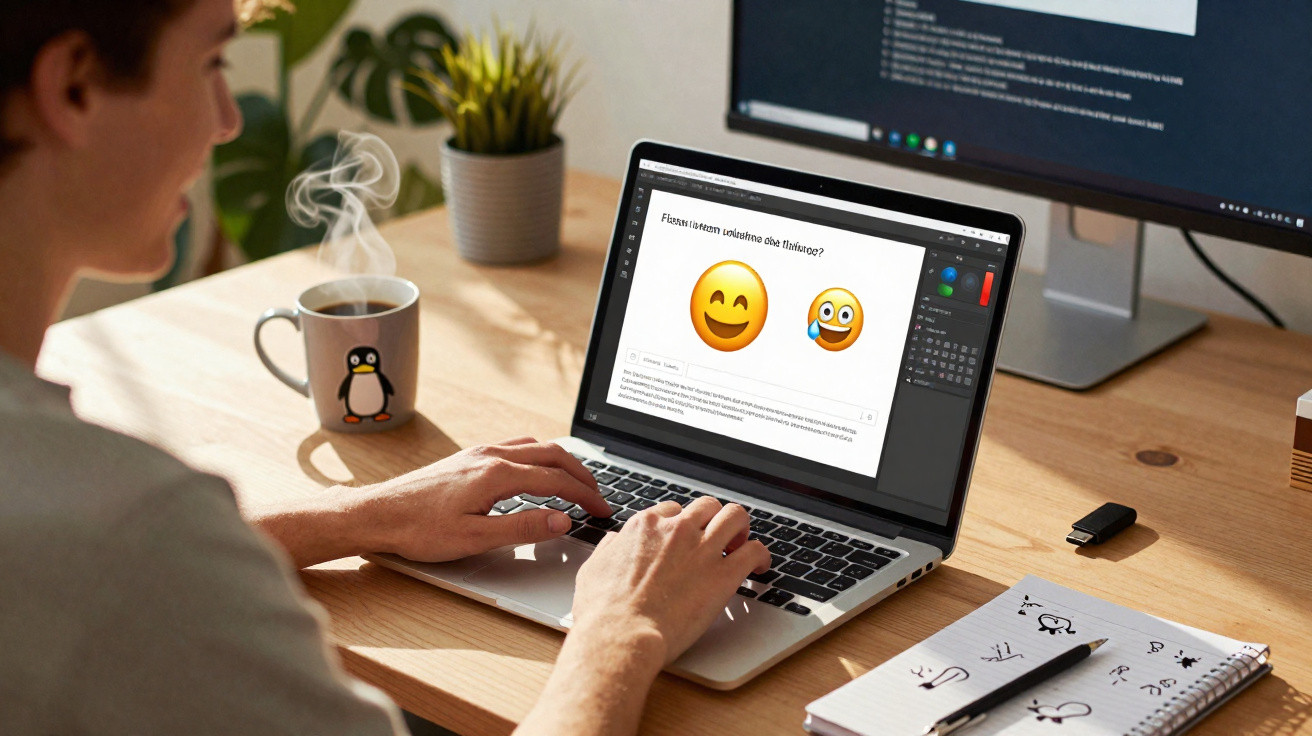
Many users avoid heavyweight image-editing programs but still want to create a meme quickly – using their own photo, a cheeky caption and no complicated menus. This is precisely where a small Linux application is making a name for itself among open-source enthusiasts: Memerist.
Why Linux users can now create memes more easily
Memes have long been part of everyday digital life. Whether in a team chat, on Reddit, in Telegram groups or in the family WhatsApp chat, a well-placed line on the right image often communicates more than a lengthy comment. On Linux, creating these images has generally meant using GIMP or other image editors until now – powerful tools, but often frustrating for beginners.
Memerist takes a different approach. The app focuses solely on what meme creators actually need: choose an image, add text, export it, done. There is no layer chaos, no flood of filters and no ten submenus just to set a simple typeface.
“Memerist reduces image editing to the essentials: a few clicks, a few words – and the meme is ready.”
What Memerist can do – and what it cannot
Memerist is intentionally lightweight, while still including the features that matter for everyday meme creation. Its key functions include:
- a small built-in library of familiar meme images
- the option to add your own photos or screenshots to the library
- a text tool with basic formatting and rotation
- multiple layers for text and images
- export to PNG or JPG
- filters offering high contrast and a deliberately ‘ruining’ effect for trash memes
- zoom controls and a real-time preview
That very limitation is what makes the tool so approachable. Rather than getting lost in features, users can click their way to a first finished meme within minutes. No tutorial or manual is required.
Who Memerist is particularly suited to
Memerist is especially useful for Linux users who do not want to spend time learning GIMP or Krita in depth. Typical use cases include:
- administrators quickly making an internal IT meme for the company chat
- students adding humorous images to slides or learning materials
- streamers and creators supplying social-media posts with spontaneous jokes
- people with ideas but little graphic-design experience
However, anyone needing complex photo composites, extensive retouching or precise typography will quickly reach Memerist’s limits – in those cases, GIMP and similar software remain unavoidable.
Installing Memerist on Linux
From a technical perspective, Memerist is available as a Flatpak on Flathub. This means the app works on almost every widely used Linux distribution, provided Flatpak is supported – which is now the case on most systems.
Option 1: Install through the graphical software manager
On many desktop distributions, Flatpak packages are integrated directly into the app store. The process is straightforward:
- Open your distribution’s software shop or app centre.
- Search for “Memerist”.
- Select the relevant entry.
- Click “Install”.
Once installation is complete, the app will appear in your desktop’s application menu. If its icon is not immediately visible, logging out briefly and signing back in will often resolve this.
Option 2: Install via the terminal
Those who prefer the terminal, or whose app store does not integrate Flatpak, can use a simple command. Flatpak must already be set up and Flathub configured as a source.
| Step | Action |
|---|---|
| 1 | Open the terminal |
| 2 | Run the command: flatpak install flathub io.github.vani_tty1.memerist |
| 3 | Confirm installation prompts with “y” |
| 4 | Launch Memerist from the applications menu or with flatpak run io.github.vani_tty1.memerist |
That takes care of the technical side – no complicated packages and no cryptic dependencies.
Creating your first meme with Memerist
The real fun starts once the app is open. Its interface is uncluttered: tools on the left, the workspace in the centre, and typically settings or layers on the right.
From first click to finished image
- Choose an image: Click a motif from the supplied library or import your own image into the collection.
- Create a text layer: Click the icon marked “B” in the sidebar. This adds a new text layer.
- Enter the caption: Type the desired text into the relevant field – short, punchy lines usually work best.
- Adjust the formatting: Change the font size, position, alignment and, if needed, rotation until the text works with the image.
- Apply effects: If you wish, experiment with the included filters – such as high contrast or deliberately ‘messed-up’ settings for intentionally ugly memes.
- Export: Click “Export”, enter a file name, choose a save location, and you are done.
Memerist creates a PNG file by default. If you need smaller files or use services that do not accept PNG, simply change the file name extension to “.jpg”. The app will then produce a JPEG file, which often takes up considerably less storage space.
“A meme does not have to look perfect – it needs to land, make people laugh and be easy to share.”
Where Memerist reaches its limits – and why that rarely matters
One thing becomes clear while using Memerist: some professional features are missing. For instance, the perspective of text layers cannot be adjusted. Anyone wanting to ‘stick’ text to a sloping building edge will soon hit the program’s limit. Fonts also cannot be fine-tuned down to every last detail.
For typical everyday memes, that barely matters. Most formats rely on clear, central blocks of text positioned legibly in the image anyway. And if a caption looks slightly crooked, that can even suit many meme styles, which are deliberately improvised in appearance.
Why a simple meme tool makes sense despite the AI hype
The timing of a tool like this gaining momentum is interesting: people everywhere are talking about generative AI, automated image generators and content produced at scale. Yet many users feel overwhelmed by precisely this – with unclear usage rights, warning notices and ethical questions.
Memerist offers a counterpoint: your own image, your own text, and no hidden black box in the background. Anyone using a photo from the office or the latest games night knows exactly where the motif came from. There are no training datasets that are constantly debated and no uncertain licensing terms for other people’s images.
This not only reinforces the feeling of control, but can also produce more authentic memes. Personal snapshots with a direct connection to everyday life often have more impact in a chat than perfectly rendered artwork.
Practical tips for better memes with Memerist
A tool is only as good as the ideas put into it. A few rules of thumb can help you get effective results from Memerist quickly:
- Keep it short: Two crisp lines are better than half a novel.
- Watch the contrast: Use light text on a dark background, or the reverse – otherwise nobody will read the joke.
- Use a consistent font size: The same typeface in recurring meme series creates recognition.
- Use your own photos: Situations from real life are often funnier than standard motifs.
- Consider file size: For messaging apps, a medium-quality JPG is usually enough.
Anyone creating memes regularly can build a small personal image library in Memerist – for example, folders containing typical office scenes, pets or gaming screenshots. This makes it possible to produce new variations in seconds using the same basic motif.
More than a toy: everyday and workplace uses
At first glance, memes may seem like pure fun. In practice, they have long appeared in professional settings too: as light-hearted slides in presentations, humorous reminders of workplace rules or small internal campaigns against poor password habits. A tool that delivers quick results and works with your own images without licensing risks is useful here.
People who use Linux professionally – in DevOps, agencies or research, for example – can use Memerist to create an image for the next newsletter or internal communications platform in a matter of minutes. It significantly lowers the barrier to taking creative content into their own hands rather than delegating everything to graphic-design departments.
Ultimately, this small app shows that Linux is no longer only for administrators and terminal purists. Easy-to-use tools now exist for spontaneous visual fun too – and Memerist clearly belongs in that category.














Comments
No comments yet. Be the first to comment!
Leave a Comment