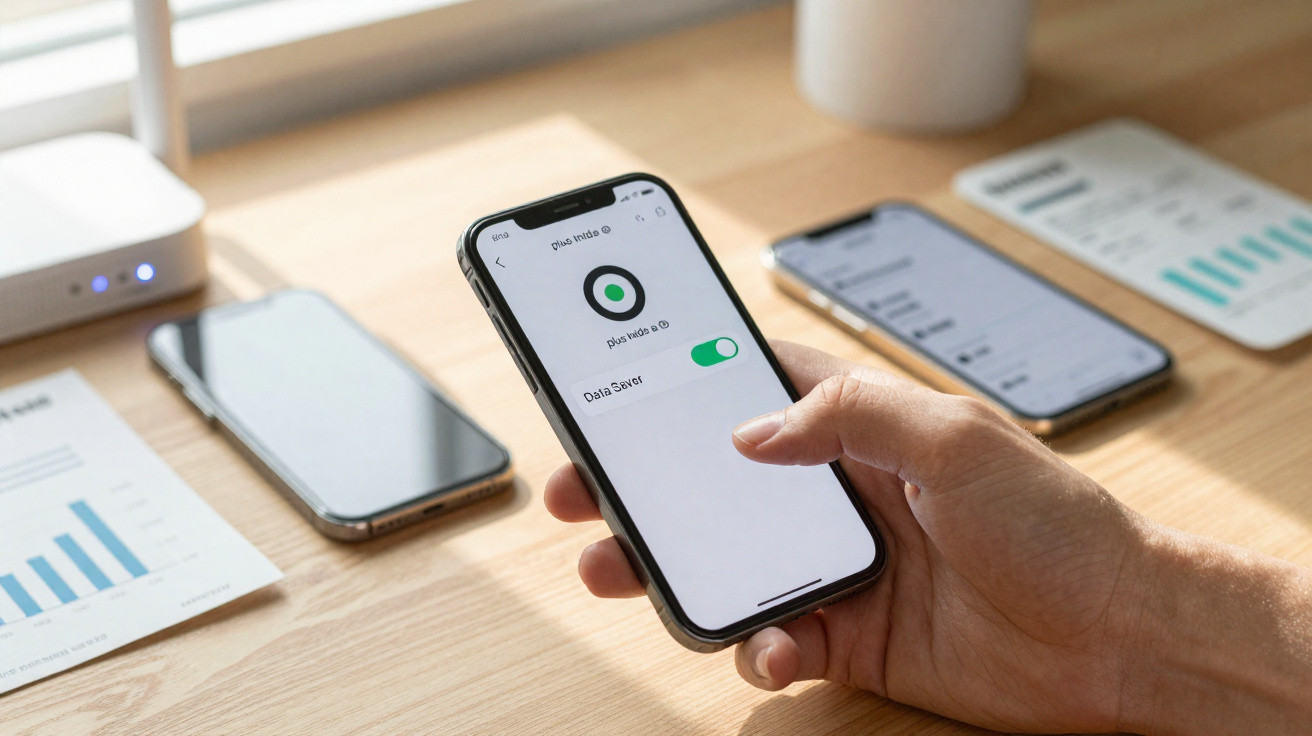
Many users are puzzled when an unfamiliar icon suddenly appears at the top of the display. A circle containing a plus sign may look harmless, yet it can determine whether apps deliver alerts promptly, images load properly, or your data allowance lasts longer.
What the plus-in-a-circle symbol actually means
On most Android phones, a plus sign inside a circle indicates the Data Saver mode. Behind this unobtrusive icon is a system feature designed to noticeably reduce mobile data use.
This function is usually enabled when your mobile data allowance is running low or you are on an expensive plan. Some people turn it on deliberately, while for others it is enabled by an update, an option in the quick settings panel or an accidental tap – and then causes confusion.
The plus sign in a circle means: the phone is trying to save every kilobyte – even if that comes at the expense of convenience and up-to-date content.
The icon can look slightly different depending on the manufacturer. Many handsets do indeed show a plus within a circle, while certain brands use another symbol.
Differences by phone: Android, Samsung and iPhone
Data Saver is available on almost every modern smartphone, but it is found in different locations and is sometimes represented differently.
Standard Android: plus in a circle in the status bar
On many Android devices, the circle with a plus clearly means that Data Saver is running. The system restricts apps in the background and cuts data usage wherever possible.
- Apps can often access mobile data in the background only to a very limited extent.
- Images and videos may load only after you tap them.
- Automatic updates and synchronisation may be postponed until later or until a Wi-Fi connection is available.
This leaves more megabytes in your data bundle, but the usual flow of messages and content may slow down.
Samsung Galaxy: triangle rather than the plus symbol
Samsung devices package the feature somewhat differently. Instead of a plus, they usually display an icon with two arrows forming a triangle. It also means Data Saver – the same function, simply shown with a different image.
Anyone who streams heavily, uses social networks or works through a hotspot while out and about will notice the effect of Data Saver quite clearly. Push notifications and media content in particular may be delayed.
iPhone: Data Saver without an icon
iPhones also have a Data Saver mode, but there is no matching icon in the status bar. The feature operates quietly in the background and can be enabled in the mobile data settings.
For this very reason, many iPhone users forget that the option is switched on and wonder why apps suddenly feel “sluggish” or content loads only slowly when they are away from Wi-Fi.
The benefits: how Data Saver protects your data allowance
Anyone on a small or older mobile plan will know the issue: by the middle of the month, the data allowance has already gone, speeds are reduced or costly add-on bundles may be required. This is where Data Saver can be a genuine lifeline.
Active Data Saver means: less unnoticed data consumption in the background, and more capacity left for the things that really matter.
Typical benefits of Data Saver include:
- Background data for unnecessary apps is heavily restricted.
- Automatic app updates run preferably over Wi-Fi.
- Cloud synchronisation, including photos and backups, is slowed down.
- Streaming services often use lower quality, and therefore less data.
If you use mobile data mainly for email, messaging and the occasional browse while out, enabling Data Saver can make a noticeable difference – your monthly allowance will go further.
The downside: when important information does not reach you
The drawback often becomes clear only when something important does not arrive, or arrives much too late. This is the choice facing users who see the plus-in-a-circle symbol: save data, or retain maximum convenience?
Typical disadvantages when Data Saver is enabled:
- Notifications from messaging, email or banking apps may arrive late or not at all.
- Images in chats or feeds load only after an extra tap instead of automatically.
- Live information, such as navigation, share prices and sports tickers, updates slowly.
- A mobile hotspot often cannot be started or disconnects immediately.
Anyone who depends on timely push notifications from work, family or their bank should look very carefully at Data Saver.
For two-factor authentication codes, emergency alerts or work emails in particular, the mode can be highly disruptive at the wrong moment. In these cases, it makes sense to set exceptions.
How to turn Data Saver on or off deliberately
Whether your phone shows a circle with a plus, a triangle or no icon at all, the feature can be managed in just a few steps. Menu labels vary slightly by manufacturer, but the route is similar.
| Device type | Settings path |
|---|---|
| Android (for example, Google Pixel) | Settings > Network & internet > Data Saver |
| Samsung Galaxy | Settings > Connections > Data usage > Data Saver |
| iPhone | Settings > Mobile Data > SIM > Data Mode > Low Data Mode |
Many Android devices also offer a quick-settings tile in the notification shade. Swipe down from the top, tap the icon, and the saving mode is on or off – with the plus-in-a-circle icon disappearing again.
Set exceptions: these apps can still use everything
Helpfully, Android lets you exclude individual apps from Data Saver. They can then continue to have full access to mobile data even while the plus symbol remains active.
Useful candidates to allow include:
- Messaging services used for urgent messages
- Email apps containing work accounts
- Banking or authentication-code apps
- Navigation apps if you frequently drive using live traffic data
You can configure these exceptions in the Data Saver settings as well. There is usually a toggle for each app to allow background data despite the saving mode.
Assess your own needs: do you need the plus in a circle at all?
The key question is this: does your plan cover your needs, or do you need to watch every megabyte? People who regularly have their speeds reduced benefit greatly from Data Saver. Those who consistently have plenty of data left are more likely to sacrifice convenience.
A sensible approach is:
- Check data use in your phone settings for one or two months.
- Enable Data Saver purposefully if your allowance often becomes tight.
- Allow important apps as exceptions, so that nothing critical is missed.
- In the longer term, consider whether a larger or faster plan would be more suitable.
With current 5G offers and larger data bundles in particular, changing plan may be worthwhile. It reduces the need to limit every background connection – and the notorious symbol becomes less alarming.
More control: additional data-saving settings within apps
Some services include their own saving features. Instagram, Snapchat and similar apps provide options in their settings to use less data independently of the system mode.
Typical settings in these apps include:
- Start videos only when tapped rather than automatically.
- Load fewer high-resolution images.
- Permit downloads over Wi-Fi only.
Using these in-app switches can sometimes allow you to disable the system Data Saver mode without immediately returning to uncontrolled data use. The plus in a circle disappears, while control over individual apps remains.
Everyday conclusion: do not ignore the symbol – use it deliberately
The plus in a circle is not an error or a virus; it is the system telling you that your phone is currently operating in a data-saving mode. Ignoring it could mean missed information, while turning it off without thinking may lead straight to reduced speeds.
Anyone who takes the time to configure the function properly can make a clear choice: where should data be saved consistently, and where is a little extra data use acceptable? That determines whether the icon becomes a quiet helper or a hidden nuisance.

















Comments
No comments yet. Be the first to comment!
Leave a Comment