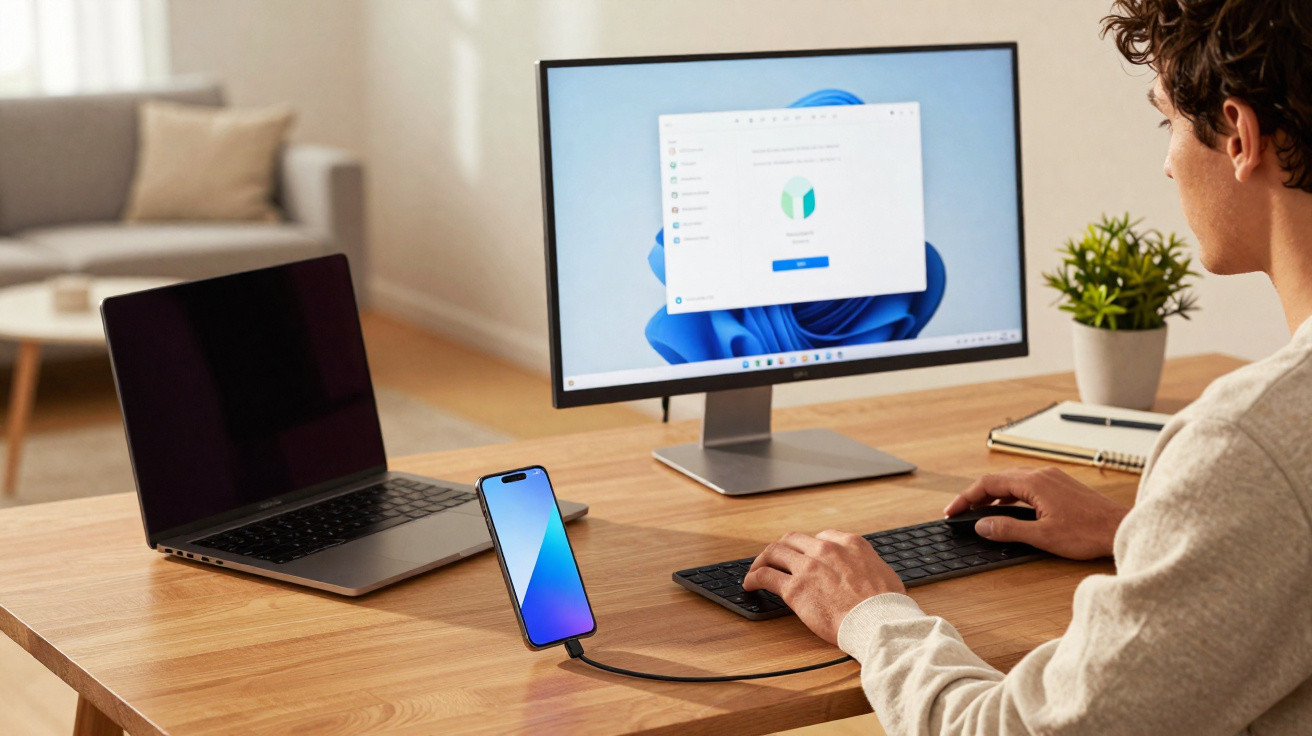
No need for a traditional PC tower beneath the desk.
Google is enabling a new desktop mode on its latest Pixel smartphones, turning your handset into an almost fully fledged computer. What was a tech enthusiast’s vision years ago is now becoming practical: connect a screen, pair a mouse and keyboard, and Android suddenly resembles a desktop operating system.
Why desktop mode is especially compelling now
More and more people do everything on their smartphones. In some countries, a noticeable proportion of users already live entirely without a laptop or conventional PC. Emails, banking, streaming and social media all happen on mobile. However, anyone trying to work productively this way soon encounters limitations: a tiny display, fiddly on-screen typing and poor multitasking.
Desktop mode brings the smartphone experience to a large monitor, with windows, a taskbar and a mouse pointer just like on a PC.
The idea of merging a phone and computer is not new. More than ten years ago, Canonical attempted a major breakthrough in “convergence” with Ubuntu: one device capable of doing both jobs. The project failed, but the vision remained. Samsung later adopted the concept with DeX, delivering a considerably more mature version for its Galaxy range.
A quick look at Samsung: DeX as the pioneer
Samsung’s DeX demonstrated how a smartphone can become a kind of desktop system. Anyone with a compatible Galaxy model can plug it into a monitor, connect a mouse and keyboard, and use a dedicated window-based interface.
Compatible devices include:
- Galaxy S series: S8 to S24
- Galaxy Note range: Note 8 to Note 20
- Fold models: Galaxy Z Fold (1 to 6)
- Galaxy Tab S tablets: S4 to S9
- Selected A models, such as the Galaxy A90 5G
This made one point very clear: a smartphone has more than enough processing power for many tasks when the interface is right. This is precisely where Google is now taking its latest Pixel devices.
Pixel as a workstation: which devices get desktop mode
Android’s new desktop mode is available on the Pixel 8 and every newer Pixel smartphone. It requires a current Android version, from Android 16 onwards, plus an external monitor with a USB-C connection.
Anyone who owns a Pixel 8 or newer already carries a small desktop computer in their pocket from a technical perspective - it simply needs connecting.
The notable part is that there is nothing to enable in hidden menus. The mode is an official part of the system rather than a makeshift feature buried in developer options, as it was previously.
How Android Desktop Mode works day to day
The hardware you need
A relatively modest setup is enough to use desktop mode properly:
- Pixel 8 or newer
- USB-C monitor that supports a video signal over USB-C
- USB-C cable with a high data transfer rate, not one intended solely for charging
- Bluetooth mouse
- Bluetooth keyboard, strongly recommended even though the on-screen keyboard remains available
Importantly, the monitor needs its own power supply. In most cases, the Pixel cannot power a larger display itself.
Entering desktop mode step by step
- Connect the USB-C cable to the Pixel and the monitor.
- Switch on the monitor and select the correct input.
- Wait for a selection to appear on the smartphone.
- Choose “Desktop” on the phone rather than screen mirroring.
- Pair the Bluetooth mouse and keyboard.
Once “Desktop” has been selected, the external display switches to the new interface. A taskbar-like strip appears at the bottom with an app overview, alongside a Start menu that opens the app drawer and the familiar notifications panel.
What Android feels like as a desktop system
On a larger display, Android in desktop mode feels surprisingly familiar. You can move windows around and place them side by side. Multiple apps run simultaneously, so there is no need to constantly switch back and forth.
In testing, a Pixel 9 Pro ran so smoothly in desktop mode that it can effortlessly replace a basic office PC for many standard tasks.
A few practical impressions:
- No noticeable lag from the mouse pointer or inputs.
- Apps launch quickly and windows respond immediately.
- Several open apps automatically appear in separate windows.
- Notifications arrive in the usual panel and can be managed with the mouse.
Only the traditional PC heavyweights are missing: professional video editing, complex development environments and specialist server software. A current Pixel is more than capable of handling office work, web browsing, emails, chat, streaming and even basic photo editing.
Details worth knowing
Cables, monitors and wallpaper: small pitfalls
A few points matter before relying entirely on the mode:
- Cheap USB-C charging cables without fast data transfer often do not work.
- The phone’s wallpaper does not automatically appear on the desktop; you set a separate one for the monitor.
- After unplugging the cable, the selected desktop wallpaper is not saved permanently, so it often has to be set again.
- Some older monitors using adaptor setups, such as USB-C to HDMI through a cheap dongle, can be temperamental; a proper USB-C monitor is more reliable.
On the positive side, the mode no longer needs activating through developer options. Android treats it as a normal feature and asks about it when a display is connected.
What you can realistically do with it
Desktop mode is particularly suited to the following scenarios:
| Use case | Suitable? | Note |
|---|---|---|
| Emails, office work, browser | Yes | Multiple windows, effective mouse controls and comfortable typing with a keyboard. |
| Working from home, video calls | Largely | Meetings in a browser or apps, with notes possible alongside. |
| Gaming | Limited | Many mobile games run, but not all are optimised for a mouse and keyboard. |
| Professional video editing | No | Even a powerful smartphone soon reaches its limits here. |
| Server and specialist software | Usually no | A conventional computer remains the more sensible option. |
Who benefits most from Pixel desktop mode
The new mode is aimed primarily at three groups:
- Minimalists who do not want an additional PC taking up space.
- Frequent travellers who often find a monitor and peripherals when away, and want to connect their setup quickly.
- Occasional users who only need a “proper” screen from time to time, such as when working from home.
In developing countries or for people on tight budgets, the mode could carry even more weight. One device for everything, from messaging to text documents, reduces costs and technical overhead.
What to consider for productivity with Android
Anyone intending to use desktop mode seriously for work should get used to a few fundamentals. Good mouse gestures, sensible window placement and a well-organised app drawer make a significant difference. Apps with polished tablet or desktop views are especially effective here.
Conveniently, many cloud services run directly in the browser. That means there is no need for a dedicated Windows or Mac version of a program. Documents, spreadsheets, project management and team chat all work in the Chrome browser just as well as they do on a laptop.
At the same time, Android remains Android: notifications, system shortcuts and familiar gestures all feel recognisable. Anyone comfortable using their Pixel will quickly find their way around desktop mode, although they will need to work more with windows rather than full-screen apps.
A step towards a smartphone-only future
With desktop mode, Google brings Pixel users closer to a scenario in which the smartphone is the central computer. This could increase the number of people deliberately choosing to do without a conventional PC. Newer Pixel models in particular have sufficient power to handle office tasks and media consumption with ease.
Whether users genuinely give up their laptops will ultimately depend on how mature apps are in windowed mode, and on how reliably monitors and peripherals work together. Yet for many everyday tasks, the barrier is already remarkably low: a Pixel 8, a good cable and a monitor are enough to fundamentally transform a home desk.

Comments
No comments yet. Be the first to comment!
Leave a Comment