
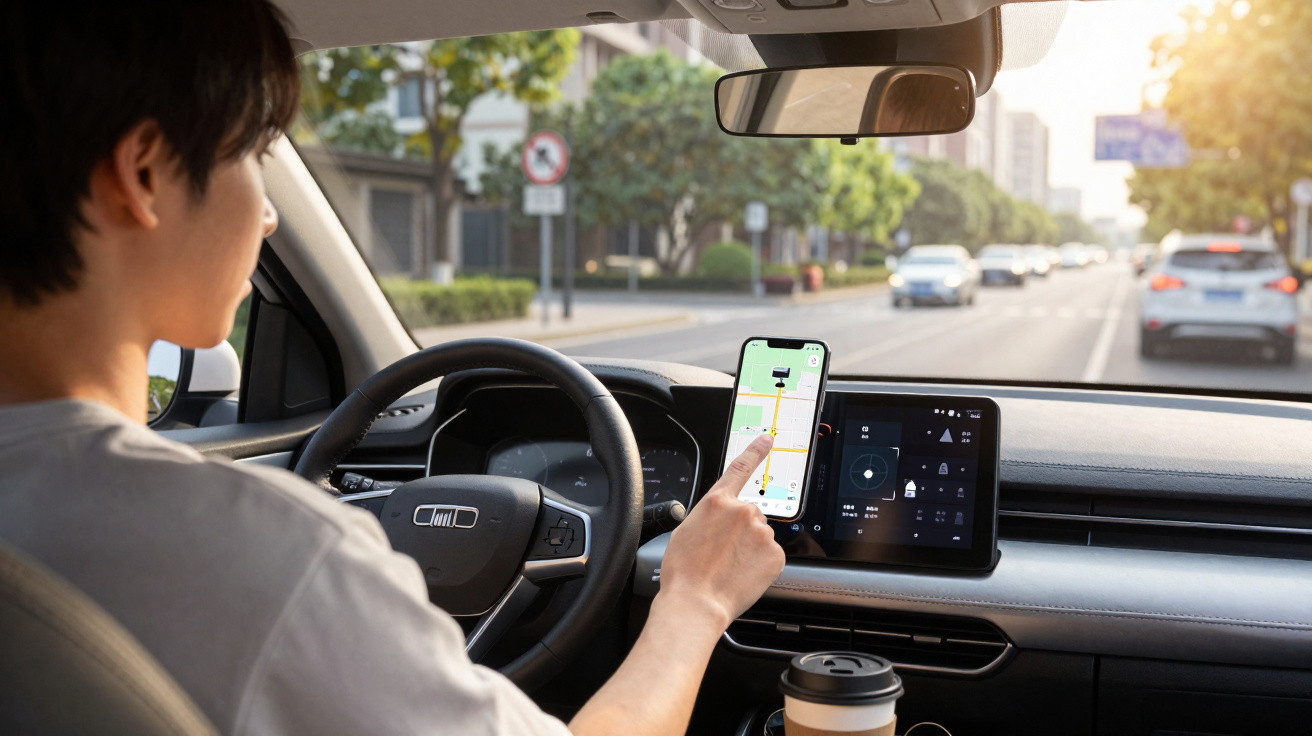
With roadside checks becoming more frequent and next‑generation speed cameras appearing across the network, many drivers are looking for legal ways to stay on top of their driving. Waze has become a handy companion for that purpose-provided you know how to get the most from it. Despite what many assume, speed camera detection is not switched on by default and needs a couple of tweaks to work properly.
Waze is far more than a basic sat nav. Widely used in France, it stands out for delivering live updates on traffic conditions, collisions, roadworks and, importantly, enforcement areas. Its real advantage is the collaborative approach: millions of users feed in reports every day, creating a shared support network between drivers.
The contrast with Google Maps-its Alphabet stablemate-is clear. Waze tends to stay one step ahead thanks to tools such as danger‑zone reporting, real‑time updates for fuel prices and tolls, and alerts about roadside checks.
Enable Waze radar detection and alerts
To benefit from speed camera detection, you must switch on a specific setting. Here’s what to do:
- Open the app and go to “My Waze”.
- Find the cog icon (settings).
- Choose “Alerts and reports”.
- Then open “Reports”.
- Turn on the toggles for the alerts you want.
Adjust sound alerts for a better drive
To get the most out of Waze, remember to set up audible warnings. Tap the speaker icon at the bottom right of the home screen, then choose between “Alerts only” and “Sound on”. This small bit of tailoring can make a real difference when you’re on the move.
Play your part in the Waze community
Waze only works well because its community stays active. You can also become a switched‑on “Wazer” by reporting what you encounter along the way. A vehicle stopped on the hard shoulder? A loose animal? A section of road that’s especially slippery? It only takes a few seconds to warn other drivers. To submit a report:
- Tap the orange triangle icon at the bottom right.
- Pick the incident type from the options provided.
- Confirm your report.
Be aware: in line with current legislation, the exact locations of fixed speed cameras are no longer shown directly. Only danger zones are flagged, and alerts for mobile speed cameras may be temporarily limited during special operations.
In any case, speed camera detection is mainly useful for avoiding lapses in concentration-something that’s particularly common on long journeys. The goal is absolutely not to encourage risky driving, quite the opposite. Speed camera detection or not, your anticipation and attention remain your best allies for driving safely.



Comments
No comments yet. Be the first to comment!
Leave a Comment