
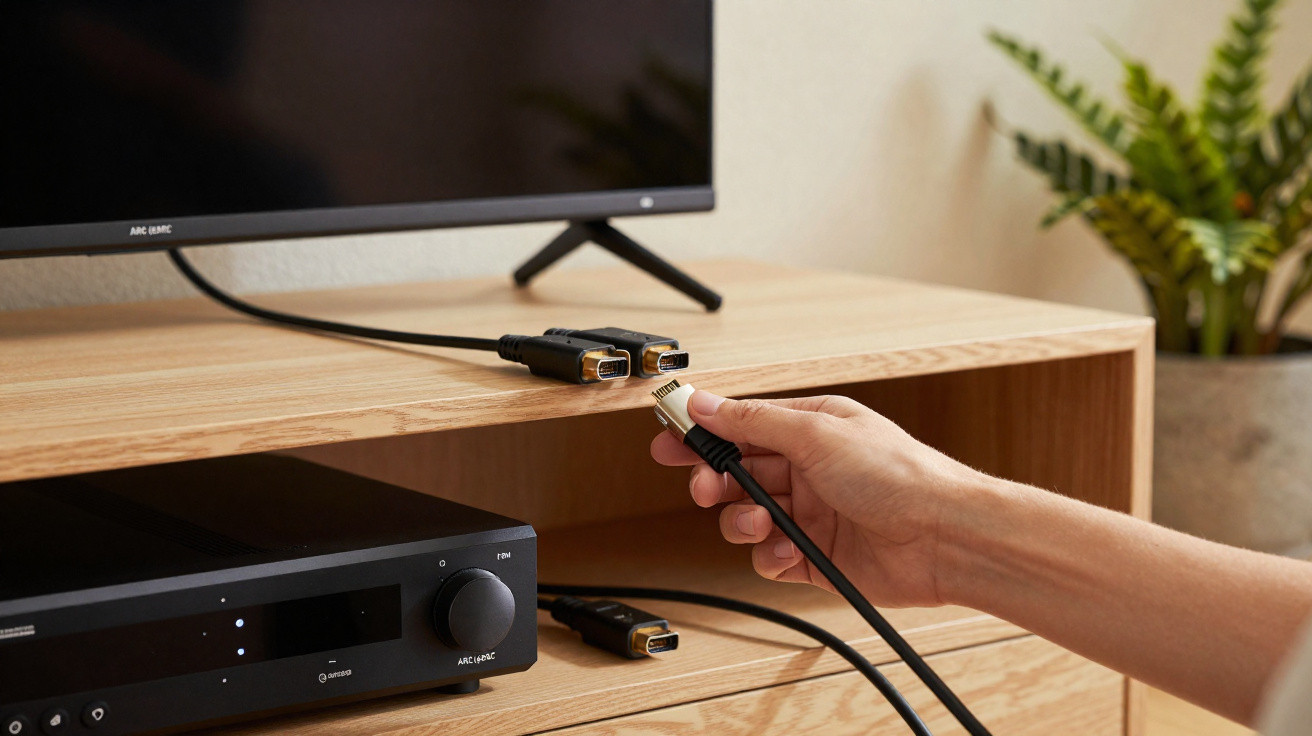
Plug certain devices into the wrong HDMI port and you can end up with poorer performance or less fluid motion. Here’s what you need to know.
Although HDMI sockets look identical, they don’t always offer the same features or the same bandwidth. Unfortunately, if you don’t connect your console or PC to the right HDMI input, you may not get the performance your setup is actually capable of. And if you plug a soundbar into an unsuitable HDMI port, you can also run into audio issues.
Do you have an HDMI 2.1 port?
Start by checking exactly which HDMI inputs your TV has on the back. As our colleagues at ZDNet explain, the most capable option-HDMI 2.1-may be labelled with markings such as “4K120”, “VRR”, “Game”, or “Enhanced”, or it may explicitly state the supported resolution and frame rate. If there’s no indication at all, it’s quite likely you’re looking at an HDMI 2.0 port, which is less capable.
The gap between these two standards is significant. HDMI 2.0 tops out at 18 Gbit/s and can display 4K at 60 Hz. HDMI 2.1, on the other hand, reaches 48 Gbit/s, enabling 4K at 120 Hz or 8K at 60 Hz. If you’re unsure, check your TV’s user manual to confirm whether it has at least one HDMI 2.1 port.
Connect the right device to the right port
Once you’ve identified the TV’s HDMI 2.1 input(s), the next step is to reserve them for the devices that benefit most. If you’re connecting a standard PC or a TV box, any HDMI port will usually do the job.
By contrast, HDMI 2.1 becomes much more important with devices such as current-generation consoles or gaming PCs. These can rely on 4K 120 Hz for the smoothest, most responsive experience, alongside other HDMI 2.1 features. You can also consult your device’s user manual or specification sheet: check which HDMI version its output supports, and try to match that output standard with an input on the TV. Alternatively, if the specs mention 4K 120 Hz output, using HDMI 2.1 on the TV side is what allows you to see those improved visuals.
If you’re connecting audio gear over HDMI-such as a soundbar or a subwoofer-make sure it’s plugged into the HDMI port marked “ARC” (Audio Return Channel) or “eARC” (Enhanced Audio Return Channel). These features are specifically designed so the TV can send audio back over HDMI.
Don’t forget to choose the right cable
Even if you use the correct port for a console or PC, you won’t gain anything if the HDMI cable itself isn’t up to the task. Fortunately, the organisation behind the standard runs a certification programme that makes it easier to pick the right lead. For instance, to display 4K at 120 Hz (48 Gbit/s bandwidth), you’ll need a cable certified as “Ultra High Speed HDMI”.
HDMI 2.2: the standard set to change everything
While most TVs today offer HDMI 2.1 and/or HDMI 2.0 inputs, a new iteration-called HDMI 2.2-is on the way. It was made official this year and promises extremely ambitious capabilities.
With 96 Gbit/s of bandwidth, HDMI 2.2 supports 4K at 240 Hz and can scale all the way up to 16K.




Comments
No comments yet. Be the first to comment!
Leave a Comment