
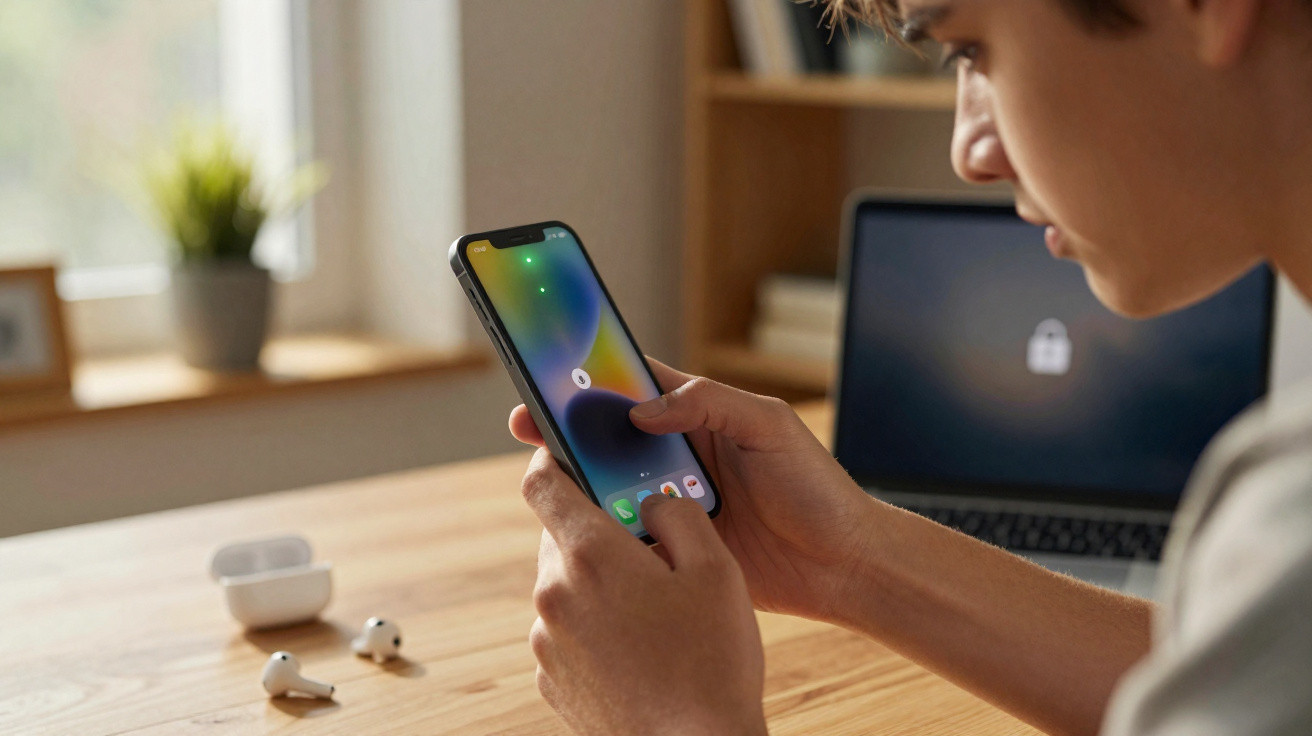
Not many people know what the small green or orange dot that sometimes appears at the top of an iPhone screen actually means. Yet it can be a very handy clue when you’re trying to spot a possible hacking attempt.
Since iOS 14, Apple has introduced a set of indicators designed to show you when apps - especially third-party ones - are using certain iPhone functions. Most users have mainly noticed the time changing colour, for instance when Personal Hotspot is enabled (the indicator turns green).
What the coloured indicators around the time mean in iOS 14
When the time is outlined in blue, it means your iPhone is mirroring its screen or an app is tracking your location. If that same indicator turns red, a recording is in progress (either audio or a screen video recording). And if the time appears in purple, SharePlay is active.
Alongside these useful signals, there is also a tiny dot in the top-right corner of the display.
Be wary of the green dot at the top of an iPhone screen, especially if it appears for no reason
Because you can’t tap the dot to get more information, many people never really learn what it does - whether it shows up in green or in orange. Even if the feature is surprisingly unintuitive, this indicator is essential if you want to read it correctly and improve your smartphone security.
On its support pages, Apple explains: “In iOS 14 and later, an orange or green indicator might appear in the status bar on your iPhone. These indicators appear when the microphone and/or camera are being used by an app.”
In practical terms, an orange dot means the microphone is currently being used by an app on your iPhone. A green dot means your camera - or both the camera and the microphone - are being used.
To make things more confusing, the dot can appear alongside the indicator around the time, or it can appear on its own. So how should you read it - and why is it important to act quickly? When the dot appears by itself, it suggests an app is using your microphone and/or camera sensor in the background.
How to see which app is using the microphone or camera (Control Centre)
Sometimes this background activity is completely legitimate. However, in other cases, it can point to a genuine attempt to hack your device.
You can get a little more detail by opening Control Centre. Above the controls, you’ll see the name of the app that is accessing these features.
As a rule, if it’s an Apple app, there’s usually no real reason to worry. But if the dot is triggered by a third-party app, you should check carefully why that app needs such access - and whether it could actually be an attempt at spying or hacking.
Also read – iPhone – how to stop your smartphone spying on you
If necessary, you should delete the problematic app as quickly as possible. And if you have a sensitive role or deal with sensitive work, you may even want to reset your iPhone to factory settings to be sure you haven’t been infected by spyware-style malware similar to Pegasus…





Comments
No comments yet. Be the first to comment!
Leave a Comment